You open Google Analytics to check today's traffic and you're greeted by a blank dashboard with "No data received yet." Sound familiar? Three years after Universal Analytics was deprecated, a surprising number of small site owners are still on this screen—either because they never set up GA4, or because they installed the tag but the events stopped firing after a website redesign.
This guide walks through the entire GA4 setup from scratch: creating the property, installing the tag, configuring essential events, and verifying that data actually flows in. No prior GA4 experience assumed. The whole process takes about 30 minutes, and we'll flag the three mistakes that cause 90% of "my GA4 shows no data" support tickets.
Step 1: Create a GA4 Property
Go to analytics.google.com and sign in with a Google account (preferably one with edit access to your website). Click the gear icon (Admin) in the bottom-left corner, then under Property, click "Create property."
Enter your property name (usually your website name), select the timezone and currency, and click next. Google will ask about your business size and goals—these are just for tailoring the dashboard, you can pick anything. Click "Create" and accept the data processing terms.
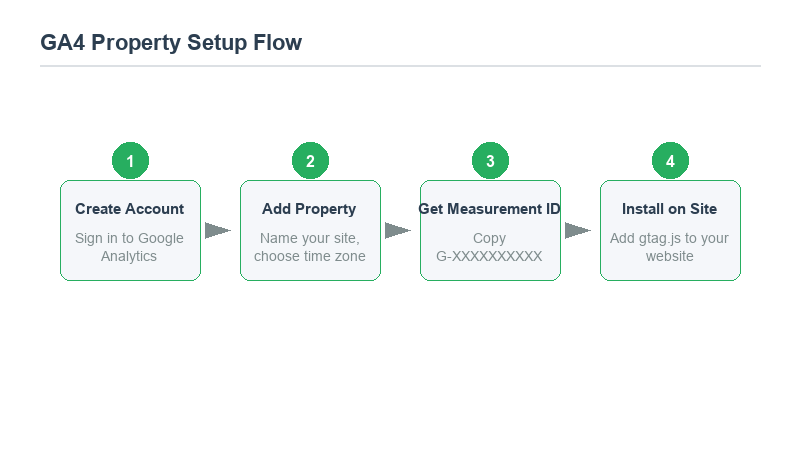
You'll land on a screen asking how you want to set up the tag. Choose "Install manually" (this gives you the most control; the Google Site Tag option through Google Sites is unnecessary for most self-hosted sites). You'll see a Measurement ID that looks like G-XXXXXXXXXX—copy this, you'll need it in the next step.
Step 2: Install the GA4 Tag on Your Website
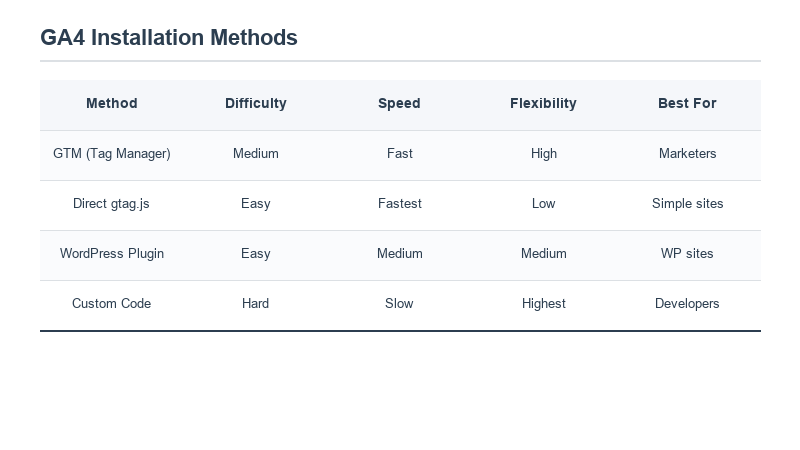
This is where most people get stuck. There are three ways to install the tag; pick the one that matches your setup.
If you use Google Tag Manager (recommended)
In GTM, create a new tag: Tag Type = "Google Analytics: GA4 Configuration." Paste your Measurement ID. Under triggering, select "All Pages." Save and submit the workspace. Done—no code changes needed on your site.
If you use WordPress
Install the official "Google Site Kit" plugin (by Google). After connecting your Google account, Site Kit will automatically detect your GA4 property and insert the tag. No coding required. If you prefer manual control, the "Insert Headers and Footers" plugin lets you paste the GA4 snippet into the <head> section.
If you have a static HTML site
Copy the entire snippet Google provides (it starts with <script async src="https://www.googletagmanager.com/gtag/js?id=G-...">) and paste it into the <head> of every page on your site. If your site has a shared header template, paste it there once.
Step 3: Verify the Tag Is Actually Working
Don't assume the tag works just because you pasted it. There are two ways to verify:
Realtime report: In GA4, go to Reports → Realtime. Open your website in a new incognito window. If GA4 shows 1 active user within 30 seconds, the tag is firing correctly. If nothing shows up after two minutes, you have a problem.
Google Tag Assistant: Install the Tag Assistant extension for Chrome. Open your site, click the extension icon, and it will show exactly which tags fired and whether there are errors. This is the most reliable debug tool—it catches caching issues, duplicate tags, and misfired triggers that the Realtime report misses.
Common reason for "no data": Your site caching plugin is serving a stale version of the page without the GA4 snippet. After installing the tag, clear your site cache (WP Rocket, W3 Total Cache, Cloudflare, etc.) and test again. We've seen this delay a live tag by up to 24 hours on heavily cached sites.
Step 4: Configure the Events That Actually Matter
GA4 automatically tracks page views, session duration, and device info out of the box. But to make GA4 useful for your business, you need to track events—specific actions users take. The five events every site should configure:
| Event | What It Tracks | Why It Matters |
|---|---|---|
| generate_lead | Contact form submissions | Your actual conversion metric |
| click (outbound) | Clicks on external/affiliate links | Shows which content drives revenue |
| scroll | 90% page depth reached | Measures content engagement |
| video_view | Video play/duration | If you embed video content |
| download | PDF/file downloads | Lead magnet performance |
The easiest way to set these up is in GA4 Admin → Events → "Create event" using the event builder (no code needed for basic click and scroll tracking). For form submissions, you'll need a small snippet of JavaScript on your thank-you page that calls gtag('event', 'generate_lead').
Step 5: Connect Google Search Console (Don't Skip This)
GA4 alone tells you how many visitors you got. Connecting it to Google Search Console tells you which search queries brought them—the actual keywords people typed into Google to find you.
In GA4 Admin → Product links → Search Console links. Follow the prompts to verify your site ownership (if you haven't already), and select the Search Console property for your domain. Within 48 hours, you'll see search query data in the Reports → Acquisition → Traffic acquisition section.
This is the single highest-impact integration for content sites. Without it, you're flying blind on which articles actually rank. With it, you can see that "best JSON formatter" drives 40% of your organic traffic and double down on similar topics.
Step 6: Set Up Conversions and Ignore the Rest
GA4 has dozens of reports, but you only need three. Go to Admin → Events, find the event you care about most (usually form submission or affiliate click), and toggle the "Mark as conversion" switch. This tells GA4 to treat that event as your primary success metric.
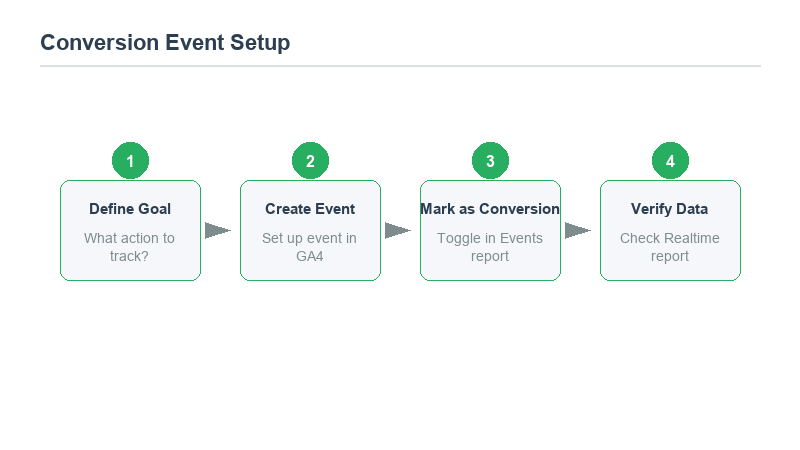
Everything else in the default dashboard—the demographic breakdowns, the channel grouping, the landing page reports—is noise until you have a conversion event configured. Once conversions are set up, the Acquisition report will show you which traffic sources actually produce leads, not just visits.
The Three Mistakes That Break GA4
Mistake 1: Installing the tag twice. If you have GTM AND a hardcoded snippet on your page, every page view gets counted twice. Use Tag Assistant to check for duplicate tags. Pick one method, not both.
Mistake 2: Not excluding internal traffic. Your own visits to the site while working on it will inflate your reports. Go to Admin → Data Streams → your stream → More tagging settings → Define internal traffic. Create a rule for your office IP address, then mark it as "Internal" in the Administration → Events section.
Mistake 3: Expecting data immediately. The Realtime report is instant, but standard reports (acquisition, engagement, conversions) take 24–48 hours to populate. Don't panic after one hour—come back tomorrow. If there's still no data after 48 hours, re-run Tag Assistant.
For more tutorials on growing your site traffic alongside your analytics, see our guide on building landing pages with Carrd.
Frequently Asked Questions
Do I need GA4 if I'm just running a small blog?
If you're not tracking anything right now, yes. GA4 is free, and even for a small blog, knowing which articles get traffic (and where that traffic comes from) is the difference between writing blindly and writing strategically. It takes 30 minutes to set up and costs nothing.
How long does GA4 take to show data?
Realtime data appears within seconds of installing the tag. Standard reports (acquisition, engagement, conversions) take 24–48 hours. Search Console integration adds another day. If you see no standard reports after 72 hours, the tag isn't firing—use Tag Assistant to debug.
What's the difference between a GA4 event and a conversion?
Events are any user action you choose to track (clicks, scrolls, downloads). A conversion is an event you've explicitly flagged as a business goal. You can have 20 events configured but only mark 1–3 as conversions (the ones that actually make you money or generate leads).