
Most developers don't truly understand Git. They memorize five commands (`add`, `commit`, `push`, `pull`, `status`) and pray that a merge conflict never appears. Then, one Tuesday afternoon, they run `git rebase` on the wrong branch, and their entire week is gone.
Here is the good news: You don't need a computer science degree to master version control. You need a structured weekend. In the next 48 hours, you will move from "copy-paste commands" to "actually understanding the DAG (Directed Acyclic Graph) that powers modern software development." No fluff, just a tactical plan.
Why Most Git Tutorials Fail (And How This Weekend Plan Differs)
The standard approach to learning Git is reading the Pro Git book or watching a 4-hour video. That is passive learning. You will forget 90% of it by Monday.
This weekend plan is built on the spaced repetition of failure. You are going to break Git on purpose. You are going to create merge conflicts, detach your HEAD, and lose commits. By Sunday evening, you will realize that almost every Git disaster is recoverable—which is the true secret to confidence.
Furthermore, we are skipping the GUI (Graphical User Interface) tools for the first 24 hours. Tools like SourceTree or GitHub Desktop hide the underlying mechanics. If you rely on a GUI, you will panic when you have to work on a remote server via SSH (Secure Shell) where no GUI exists. Learn the CLI (Command Line Interface) first; the GUIs become unnecessary later.
Saturday Morning: The Core Loop (Commands You Can't Live Without)
Forget branching strategies for a moment. Forget CI/CD pipelines. Your goal for Saturday morning is to understand the snapshot model. Git does not store changes (diffs); it stores snapshots of your entire project.
Here is the mental model that clicks for most people:
- Working Directory: The files you see in your editor.
- Staging Area (Index): A "holding pen" where you select which changes go into the next snapshot.
- Repository (.git folder): The database of all your snapshots.
Your Saturday drill: Create a folder called practice-repo. Initialize it. Create three text files. Add them one by one. Commit them one by one. Then, modify a file, but only stage half of the changes using git add -p. This interactive staging is the single most underrated skill for clean commit history.
Do this for two hours until you can do it without looking at a cheat sheet. If you want to speed up the process, check out Learn Statistics Fast for the same "drill-based" learning methodology applied to data analysis.
Saturday Afternoon: Branching and Merging (The Visual Workflow)
Branches are not "folders." A branch is simply a movable pointer to a specific commit. When you create a branch, you are creating a new pointer.
The "Aha!" moment usually happens when you visualize this. Use a tool like git log --graph --oneline --all to see the tree structure. You will see the branches diverging (forking) and converging (merging).
Your afternoon drill is to create a deliberate merge conflict. Here is the recipe:
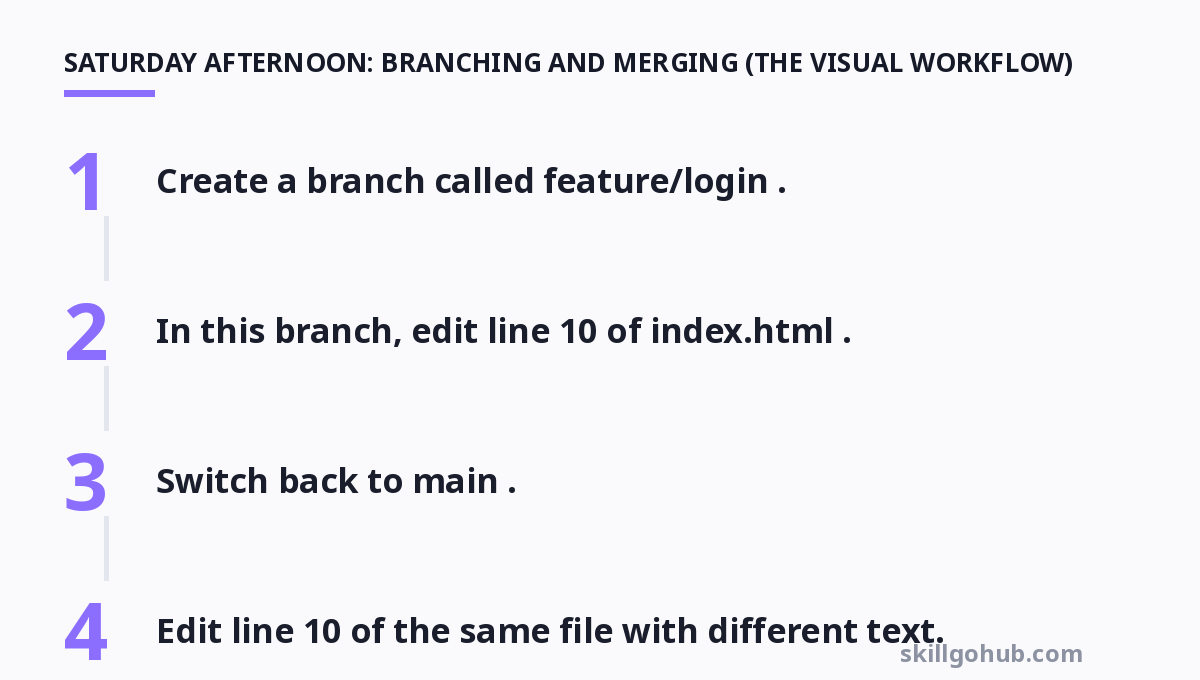
- Create a branch called
feature/login. - In this branch, edit line 10 of
index.html. - Switch back to
main. - Edit line 10 of the same file with different text.
- Merge the feature branch into main.
Watch the error message. Then, open the file in your editor. You will see <<<<<<< HEAD and >>>>>>> feature/login. These are conflict markers. Fix them manually, then git add and git commit. Do this until you are bored. If you master conflict resolution, you are already ahead of 70% of working developers.
Sunday Morning: Rewriting History and Remote Collaboration
This is where the "scary" commands live: rebase, reset, and amend. The key to not losing data is understanding the "Golden Rule of Rebasing": Never rebase a branch that others are working on.
For your weekend project, practice the following sequence:
- Make three commits.
- Realize the commit messages are terrible.
- Use
git rebase -i HEAD~3to squash them into one clean commit.
Next, move to remote collaboration. Create a repository on GitHub or GitLab. Push your local branch. Then, simulate a teammate by cloning the repo to a different folder on your computer. Make changes in the clone, push them, and then pull them back to your original folder. This simulates the multi-user experience without needing a second person.
If you find yourself struggling with the logic of "where is my code?"—a common hurdle—take a break and read Learn Leadership. The core principle of delegation in leadership mirrors the Git principle of "decoupling" work streams. You don't want your team members (or code branches) stepping on each other's toes.
Sunday Afternoon: Real Tools and GUI Clients (The Comparison)
Now that you understand the CLI, you can evaluate GUI tools without becoming dependent on them. Here is an honest comparison of the most popular tools in 2026, based on real pricing and actual workflow benefits.
| Tool | Best For | Pricing | Pros | Cons |
|---|---|---|---|---|
| GitHub Desktop | Beginners who want zero config | Free | Simple UI; excellent for basic commit/push workflows; great for students. | No advanced rebase tools; hides the Git internals too much. |
| GitKraken | Visual learners who love graphs | Free tier (public repos); Pro: $59/user/year | Best-in-class visual commit graph; built-in merge conflict editor; cross-platform. | Heavy memory usage; the paid tier is expensive for solo devs. |
| Sourcetree | Atlassian ecosystem users (Jira/Bitbucket) | Free | Powerful for complex branching; integrates well with Jira tickets. | UI feels clunky and outdated; can be slow with large repos. |
| Fork | Mac/Windows power users | Free trial; $49.99 one-time payment | Fast; clean interface; excellent "interactive rebase" visualizer. | No Linux support; one-time fee scares some users away. |
| VS Code (Built-in) | Developers already using VS Code | Free | No context switching; inline blame annotations; integrated terminal. | Limited graph visualization; conflict resolution UI is basic. |
| GitLens (Extension) | Code archaeology (who wrote this line?) | Free tier; Pro: $45/year | Unmatched blame/annotations; deep code linking. | Not a "commit" tool; it enhances VS Code, doesn't replace it. |
My verdict: For the weekend warrior, start with GitHub Desktop to get the basics done. Then, install GitKraken (free tier) to see your branches. Once you feel confident, ditch them both and go back to the terminal. The terminal is the only constant in the industry.
Practical Project: Build a "Weekend Wiki"
Instead of doing abstract exercises, build something real. Create a "Weekend Wiki"—a simple markdown file that logs your learning journey. Here is the plan:
- Hour 1: Create the repo, make a file called
index.md, and commit your goals. - Hour 2: Create a branch for each topic you learned (e.g.,
topic/rebase). Write notes in each branch. - Hour 3: Merge all branches back to main. Resolve the inevitable conflicts (since you'll likely edit the same title line).
- Hour 4: Push to GitHub. Create a README file. Use
git tag v1.0to mark your first "release."
This project forces you to use all the commands you learned in a single, cohesive flow. It also gives you a portfolio artifact—proof that you can manage code collaboration.
If you are looking to apply this skill to design hand-off, understanding how to version control your design assets is crucial. Read Learn Figma Fast to see how versioning works in the design world, which is surprisingly similar to Git's snapshot model.
For more, check out: top 10 productivity tools to boost your workflow in 2026 and learn networking.
Frequently Asked Questions (The "I'm Stuck" Section)
Q1: I accidentally committed to the wrong branch. How do I undo it?
Don't panic. Use git log --oneline -1 to get the commit hash. Then switch to the correct branch (git checkout correct-branch) and cherry-pick the commit: git cherry-pick <hash>. Finally, go back to the wrong branch and reset it: git reset --hard HEAD~1. This moves the commit to the right place.
Q2: What is the difference between git fetch and git pull?
fetch downloads the data from the remote repository but does not merge it into your working files. pull does fetch + merge. Rule of thumb: If you want to see what changed before integrating it, use fetch and then git log origin/main to inspect.
Q3: My merge conflict is a nightmare. Should I just delete my branch and start over?
No. If you haven't pushed yet, you can abort the merge with git merge --abort. This returns you to the pre-merge state. If you have pushed, you need to resolve it manually. Use an external tool like meld or kdiff3 to see side-by-side comparisons.
Q4: How do I permanently delete a file from Git history?
You need to rewrite history. Use git filter-repo (modern replacement for filter-branch). Command: git filter-repo --path path/to/file --invert-paths. Warning: This rewrites all commit hashes. You must force-push (git push --force), which will break the local clones of your collaborators.
Q5: Is learning Git still relevant in the age of AI coding assistants?
Absolutely. AI tools like Copilot generate code, but they don't manage the collaboration aspect. Git is the layer that tracks why a change was made. In fact, with AI generating more code, having a clean, revertible history is more critical than ever. You need to be able to surgically roll back a bad AI suggestion without losing unrelated work.
By Sunday night, you will have a working repository, a history of intentional mistakes, and the confidence to know that git reset --hard is not a "scary command" but a precise tool. Go break things—that is the fastest way to learn.
Get one practical tool tip a week
Short, useful, no spam. Unsubscribe anytime.