
Video editing is no longer a niche skill reserved for Hollywood professionals. It's the modern equivalent of writing—a core communication tool for entrepreneurs, educators, marketers, and creators. But the barrier to entry often feels like a steep cliff, not a gentle slope. You open Premiere Pro, see a thousand panels, and immediately feel overwhelmed. The good news? You don't need to learn everything. You need to learn the 20% of functions that produce 80% of the results. This article breaks down exactly how to do that, comparing the best software for speed, and outlining a workflow that gets you publishing this week, not next month.
The "Minimum Viable Edit": Why You Don't Need to Master Everything
The fastest way to learn video editing is to stop trying to learn video editing. Instead, focus on the "Minimum Viable Edit" (MVE). This is the sequence of operations required to take raw footage and turn it into a coherent, watchable video. It consists of exactly five steps: Cut, Trim, Arrange, Adjust Audio, and Export. That's it. If you can do those five things, you can publish a video today. Effects, color grading, and motion graphics are "seasoning"—they enhance the meal, but they don't make it edible.
Most tutorials fail because they teach you the software's features in isolation. You learn how to use the "Ripple Edit" tool, but you don't know *why* you'd use it. By focusing on the MVE, you learn the tool in the context of a task. You don't need to know how to keyframe opacity to make a video for Instagram Reels. You need to know how to cut out the dead air. This mindset shift is what separates those who learn in a week from those who give up in a week.
Furthermore, this approach speeds up your learning curve drastically. By limiting your initial scope, you reduce cognitive load. You build muscle memory faster. Once you have your first video published, you can then add one new skill per video—maybe color correction next time, maybe speed ramps after that. This iterative learning process is far more effective than trying to absorb a 10-hour masterclass before touching the software.
Choosing Your Weapon: The Best Software for Rapid Learning
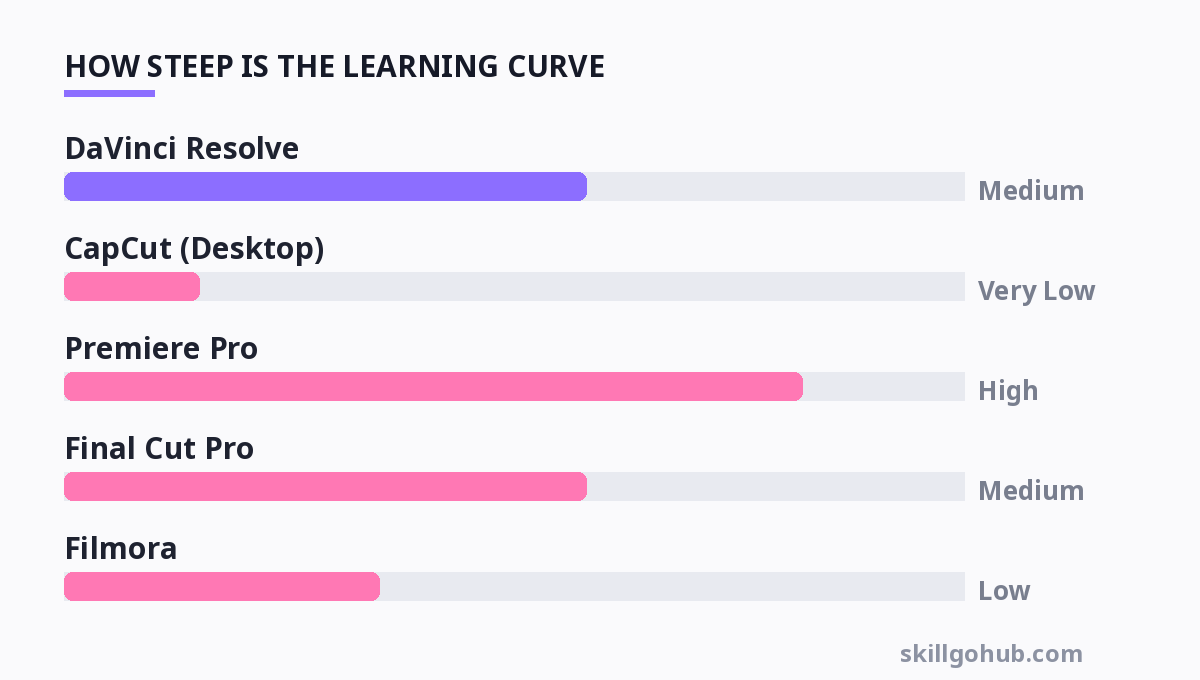
Your choice of software is the single biggest factor in how fast you learn. Choosing a complex tool like Avid Media Composer is like learning to drive in a Formula 1 car—you'll spend more time figuring out the clutch than actually driving. For speed, you need software that gets out of your way. Here is a breakdown of the best options based on learning curve, features, and price.
| Software | Best For | Learning Curve | Pricing (as of 2024) | Key Pros |
|---|---|---|---|---|
| DaVinci Resolve | All-rounders, Colorists | Medium | Free; Studio $295 (One-time) | Industry-standard color tools; no subscription for free tier |
| CapCut (Desktop) | Social Media Content | Very Low | Free (with optional Pro $9.99/mo) | Auto-captions, trending effects, cloud sync |
| Premiere Pro | Professional Workflows | High | $22.99/mo (Annual) | Integration with After Effects; industry standard |
| Final Cut Pro | Mac Users | Medium | $299.99 (One-time) | Magnetic Timeline; extremely fast for long-form |
| Filmora | Beginners | Low | $49.99/yr (or $89.99 perpetual) | Intuitive drag-and-drop UI; built-in presets |
| iMovie | Absolute Beginners (Mac/iOS) | Minimal | Free | Pre-installed; zero intimidation factor |
Honest Recommendation: If you are on a Windows machine and want to learn a tool that scales with you, start with DaVinci Resolve. The free version is incredibly powerful, and the skills translate to high-end production. If you are creating short-form content for TikTok or YouTube Shorts, CapCut is unbeatable for speed—you can literally edit a video in 10 minutes because the interface is designed for mobile-first, quick edits. Avoid Premiere Pro initially; it's powerful but the learning curve is unnecessarily steep for a beginner.
The 3-Day Kickstart Workflow: From Zero to First Video
Forget the 30-day challenges. Here is a compressed 3-day plan to get you operational. This assumes you have roughly 2-3 hours per day to dedicate.
Day 1: The Interface & The Rough Cut (2 hours)
- Hour 1: Open your chosen software. Do not watch tutorials. Import 3 clips of footage (even phone footage). Click every button on the interface. See what happens. Break it. Undo it. This "play" time is crucial for building spatial awareness of the UI.
- Hour 2: Watch one (only one) specific tutorial on "How to make a rough cut" for your specific software. Then, attempt to edit the 3 clips together into a sequence. Don't worry about audio levels or transitions. Just get the clips in order and trim the edges.
Day 2: Audio & The Fine Cut (2 hours)
- Hour 1: Watch a tutorial on "Audio Leveling" and "Noise Reduction." Audio is 50% of the video. Learn how to lower background music and boost your voice track. Apply this to yesterday's rough cut.
- Hour 2: Now, refine your cut. Remove "ums" and "ahs." Use the "Ripple Delete" function (this closes the gap when you remove a section). This is where the video starts to feel tight and professional.
Day 3: Export & The "Good Enough" Principle (1 hour)
- Hour 1: Learn how to export. This is the most critical step—many beginners produce a video but can't get it off the computer. Look up the optimal export settings for YouTube or Instagram. Export your video. Watch it on your phone. Notice the flaws. That is your homework for next week.
This workflow forces you to complete a project. The satisfaction of hitting "Export" is the dopamine hit you need to continue learning. It’s much more effective than watching "Top 10 Hidden Tips in Premiere Pro" videos on YouTube.
Keyboard Shortcuts: The Secret to Editing 3x Faster
Editing with a mouse is like swimming with a life jacket—you'll stay afloat, but you won't win any races. Speed comes from keeping your hands on the keyboard. You don't need to learn all 100+ shortcuts. You need to learn the "Power 10." Master these, and you'll immediately cut your editing time in half.
- Spacebar: Play/Pause (The most used key).
- I & O: Mark In and Out points (Selecting the good parts of a clip).
- Cmd/Ctrl + K: Split/Blade (Cutting a clip at the playhead).
- Cmd/Ctrl + Z: Undo (Your best friend).
- Shift + Delete: Ripple Delete (Delete and close the gap).
- V: Selection Tool (Back to the arrow cursor).
- Cmd/Ctrl + S: Save (Do this every 5 minutes).
- Cmd/Ctrl + Drag: Trim (Click the edge of a clip and drag while holding Cmd/Ctrl for a ripple trim).
Print these out. Stick them to your monitor. Force yourself to use them, even if it's slower at first. In two days, your muscle memory will take over. This speed is what allows you to iterate quickly and experiment without losing momentum. It also makes the process feel less like a chore and more like a game.
Common Pitfalls: What Actually Slows Down Beginners
It’s not the software that slows you down; it’s your workflow. Here are the three biggest time-wasters I see from new editors.
1. The "Perfectionist" Trap: You spend 10 minutes trying to find the exact frame to cut on. Stop. If you're off by 2 frames, nobody will notice. Get the cut close, move on, and refine later. Perfectionism kills momentum. Remember, you are learning, not delivering to a Hollywood studio.
2. Skipping the "Rough Cut": You try to fine-tune the audio and color on the first pass. This is inefficient. You must do a "Rough Cut" first—just getting the story down. Then, you do a "Fine Cut" (trimming). Then, you do "Audio." Then, "Color." This linear process is the industry standard because it is the fastest. Doing everything simultaneously leads to confusion and rework.
3. Ignoring File Management: You dump all your clips into one folder and start editing. Two days later, you see "Media Offline." You have to spend an hour relinking files. Before you start any project, create three folders: 1. Raw Footage, 2. Audio, 3. Exports. This saves you from a massive headache later. It's the least glamorous part of editing, but the most crucial for speed.
If you are struggling with the patience required for this process, consider how Habit Stacking Methods can help you integrate practice into your daily routine without feeling overwhelmed.
Free vs. Paid Resources: Where to Learn Without Wasting Money
You do not need to spend $500 on a course to learn the basics. The official training manuals and YouTube are your best friends. For DaVinci Resolve, Blackmagic Design offers free official training books on their website—these are the same materials used in certified classes. For Premiere Pro, Adobe's own "Tutorials" page is surprisingly good.
However, there is a "curse of choice" on YouTube. If you search "How to edit video," you get a million results. Here is the strategy: Stick to one creator. Find a YouTuber who teaches your specific software (e.g., Casey Faris for Resolve, or Justin Odisho for Premiere). Watch their 2-3 "Beginner to Pro" series. Do not jump around to different creators—they all have different workflows, and this causes confusion. Once you have the basics down, you can start watching other creators for specific tips.
As you progress, you'll find that learning to edit is similar to Learn Public Speaking—it’s not about the tools or the slides, but about clarity and pacing. The technical skill is just the vehicle for your message.
For more, check out: top 10 productivity tools to boost your workflow in 2026, learn video editing basics and learn statistics fast.
FAQ: Quick Answers to Common Speed-Bumps
Q: Should I learn on a mobile app or desktop software?
A: For speed and control, desktop software is superior. Mobile apps like CapCut are great for quick edits on the go, but the small screen limits precision. Learn on a desktop, then use mobile for specific tasks like adding captions.
Q: Is it better to edit video or audio first?
A: Edit the video (picture) first to get the story down. Once the visuals are locked, adjust the audio. Trying to mix audio before the picture is final is a waste of time because you'll have to redo it when you cut a section.
Get one practical tool tip a week
Short, useful, no spam. Unsubscribe anytime.